 Fernwärts
Quick start
Set up your own Fernwaerts server.
Here is a quick, no-choices path to install Fernwaerts and connect the app.
Requirements
- A system with at least 4GB of RAM and 2 CPU cores.
- Docker
Set Up the Server
Step 1 - Create the Required Files
Create a directory of your choice to hold the compose.yml and .env files.
mkdir ./fernwaerts
cd ./fernwaerts
Create compose.yml
with the following content:
name: fernwaerts

services:
  db:
    # fernwaerts-postgres = supabase/postgres + vendor init SQL baked in.
    # On first boot it runs the same scripts upstream's compose mounts into
    # /docker-entrypoint-initdb.d/ (roles, jwt, webhooks, _supabase, logs).
    image: ghcr.io/${FERNWAERTS_IMAGE_OWNER:-ton-an}/fernwaerts-postgres:${FERNWAERTS_VERSION:-latest}
    restart: unless-stopped
    healthcheck:
      test: ["CMD", "pg_isready", "-U", "postgres", "-h", "localhost"]
      interval: 5s
      timeout: 5s
      retries: 10
    environment:
      POSTGRES_PASSWORD: ${POSTGRES_PASSWORD:?set POSTGRES_PASSWORD in .env}
      JWT_SECRET: ${JWT_SECRET:?set JWT_SECRET in .env}
      JWT_EXP: ${JWT_EXPIRY:-3600}
    volumes:
      - db-data:/var/lib/postgresql/data
      - db-config:/etc/postgresql-custom
    command:
      - postgres
      - -c
      - config_file=/etc/postgresql/postgresql.conf
      - -c
      - log_min_messages=fatal
      - -c
      - wal_level=logical
      - -c
      - max_wal_senders=10
      - -c
      - max_replication_slots=10

  fernwaerts:
    image: ghcr.io/${FERNWAERTS_IMAGE_OWNER:-ton-an}/fernwaerts:${FERNWAERTS_VERSION:-latest}
    restart: unless-stopped
    depends_on:
      db:
        condition: service_healthy
    ports:
      - "${API_PORT:-8000}:8000"
      - "${POWERSYNC_PORT:-7901}:7901"
      # Loopback only: this port bypasses Kong's basic-auth and exposes an
      # unauthenticated SQL editor. Remote access goes through the API port
      # (basic-auth) or an SSH tunnel.
      - "127.0.0.1:${STUDIO_PORT:-3000}:3000"
    environment:
      POSTGRES_HOST: db
      POSTGRES_PORT: 5432
      POSTGRES_DB: postgres
      POSTGRES_PASSWORD: ${POSTGRES_PASSWORD}
      JWT_SECRET: ${JWT_SECRET}
      JWT_EXPIRY: ${JWT_EXPIRY:-3600}
      ANON_KEY: ${ANON_KEY:?set ANON_KEY in .env}
      SERVICE_ROLE_KEY: ${SERVICE_ROLE_KEY:?set SERVICE_ROLE_KEY in .env}
      PS_SOURCE_PASSWORD: ${PS_SOURCE_PASSWORD:?set PS_SOURCE_PASSWORD in .env}
      PS_STORAGE_PASSWORD: ${PS_STORAGE_PASSWORD:?set PS_STORAGE_PASSWORD in .env}
      DASHBOARD_USERNAME: ${DASHBOARD_USERNAME:-fernwaerts}
      DASHBOARD_PASSWORD: ${DASHBOARD_PASSWORD:?set DASHBOARD_PASSWORD in .env}
      LOGFLARE_PUBLIC_ACCESS_TOKEN: ${LOGFLARE_PUBLIC_ACCESS_TOKEN:?set LOGFLARE_PUBLIC_ACCESS_TOKEN in .env}
      LOGFLARE_PRIVATE_ACCESS_TOKEN: ${LOGFLARE_PRIVATE_ACCESS_TOKEN:?set LOGFLARE_PRIVATE_ACCESS_TOKEN in .env}
      SITE_URL: ${SITE_URL:-http://localhost:3000}
      API_EXTERNAL_URL: ${API_EXTERNAL_URL:-http://localhost:8000}
      SUPABASE_PUBLIC_URL: ${SUPABASE_PUBLIC_URL:-http://localhost:8000}
      POWERSYNC_EXTERNAL_URL: ${POWERSYNC_EXTERNAL_URL:-http://localhost:7901}
      DISABLE_SIGNUP: ${DISABLE_SIGNUP:-true}
      ENABLE_EMAIL_SIGNUP: ${ENABLE_EMAIL_SIGNUP:-true}
      ENABLE_EMAIL_AUTOCONFIRM: ${ENABLE_EMAIL_AUTOCONFIRM:-false}
      SMTP_ADMIN_EMAIL: ${SMTP_ADMIN_EMAIL:-admin@example.com}
      SMTP_HOST: ${SMTP_HOST:-}
      SMTP_PORT: ${SMTP_PORT:-587}
      SMTP_USER: ${SMTP_USER:-}
      SMTP_PASS: ${SMTP_PASS:-}
      SMTP_SENDER_NAME: ${SMTP_SENDER_NAME:-Fernwaerts}
    volumes:
      - logs:/var/log

volumes:
  db-data:
  db-config:
  logs:
Create .env
with the following content:
# Fernwaerts self-host configuration.
#
# Copy this file to `.env` (in the same directory as compose.yml) and fill in
# the values marked REQUIRED. Defaults are baked into compose.yml for the rest.
#
#   cp .env.example .env
#   $EDITOR .env
#   docker compose up -d
#
# Upgrading: bump FERNWAERTS_VERSION, then `docker compose pull && up -d`.

############################################################################
# Image version
############################################################################

# Pin to a release tag. `latest` is convenient but will drift across pulls.
FERNWAERTS_VERSION=0.1.0
FERNWAERTS_IMAGE_OWNER=ton-an

############################################################################
# Secrets — REQUIRED, no defaults. Generate fresh values per install.
############################################################################

# Postgres superuser password. Any long random string.
#   openssl rand -hex 24
POSTGRES_PASSWORD=

# JWT signing secret. Must be at least 32 characters.
# All other services derive trust from this; rotating it invalidates all
# existing tokens.
#   openssl rand -hex 32
JWT_SECRET=

# Anon and service-role JWTs, signed with JWT_SECRET.
# Generate at https://supabase.com/docs/guides/self-hosting/docker#generate-api-keys
# (paste your JWT_SECRET, copy the two tokens back here).
ANON_KEY=
SERVICE_ROLE_KEY=

# PowerSync replication-role and storage-role passwords.
#   openssl rand -hex 24
PS_SOURCE_PASSWORD=
PS_STORAGE_PASSWORD=

# Studio dashboard basic-auth password (username defaults to "fernwaerts").
#   openssl rand -hex 16
DASHBOARD_PASSWORD=
# DASHBOARD_USERNAME=fernwaerts

# Logflare (analytics) access tokens. The /analytics/v1/ API route is reachable
# without an apikey, so anyone holding these tokens can read or write the
# collected service logs — treat them like passwords.
#   openssl rand -hex 24
LOGFLARE_PUBLIC_ACCESS_TOKEN=
LOGFLARE_PRIVATE_ACCESS_TOKEN=

############################################################################
# Public URLs — required when serving on anything other than localhost.
############################################################################

# Where the Flutter app is hosted (used for password-reset / invite links).
# SITE_URL=https://app.example.com

# Public URL of this backend. The Flutter client and Studio both use it.
# API_EXTERNAL_URL=https://api.example.com
# SUPABASE_PUBLIC_URL=https://api.example.com

# Public URL of the PowerSync sync server. The Flutter client uses this to
# connect from physical devices. Defaults to localhost, which only works for
# simulators on the same machine as the server.
# POWERSYNC_EXTERNAL_URL=https://api.example.com:7901

############################################################################
# Optional — usually fine as-is.
############################################################################

# Ports exposed on the host. Bind to 127.0.0.1 explicitly if you're fronting
# this with your own reverse proxy.
# API_PORT=8000
# POWERSYNC_PORT=7901
# Studio dashboard direct port. Always bound to 127.0.0.1 — it bypasses Kong
# basic-auth, so it must never be reachable from other machines. Access Studio
# remotely through the API port (basic-auth) or an SSH tunnel.
# STUDIO_PORT=3000

# JWT lifetime in seconds.
# JWT_EXPIRY=3600

# Auth knobs.
# DISABLE_SIGNUP=true
# ENABLE_EMAIL_SIGNUP=true
# ENABLE_EMAIL_AUTOCONFIRM=false

# SMTP for password reset / invite emails. Without these, GoTrue logs the
# email link to its log file instead of sending it.
# SMTP_ADMIN_EMAIL=admin@example.com
# SMTP_HOST=
# SMTP_PORT=587
# SMTP_USER=
# SMTP_PASS=
# SMTP_SENDER_NAME=Fernwaerts
Step 2 - Populate .env
Open .env and fill in the empty values.
Generate strong values for secrets:
openssl rand -hex 32Use your JWT_SECRET to generate ANON_KEY and SERVICE_ROLE_KEY with the
Supabase self-hosted API key generator.
Replace the example URLs with your own domain:
SITE_URL=https://app.example.com
API_EXTERNAL_URL=https://api.example.com
SUPABASE_PUBLIC_URL=https://api.example.com
POWERSYNC_EXTERNAL_URL=https://sync.example.com
Configure SMTP so Fernwaerts can send invite emails:
SMTP_ADMIN_EMAIL=admin@example.com
SMTP_HOST=smtp.example.com
SMTP_PORT=587
SMTP_USER=smtp-user
SMTP_PASS=smtp-password
SMTP_SENDER_NAME=Fernwaerts
Without SMTP, Supabase Auth logs email links in the GoTrue container logs instead of sending them.
Step 3 - Start the Containers
From the directory you created in Step 1, run:
docker compose up -dCheck that the server is running:
docker compose psFirst Setup in the App
- Open Fernwaerts and enter the value from
SUPABASE_PUBLIC_URL. - On a fresh server, enter a username, email address, password, and password confirmation. Then tap Create Admin.
- Use a strong password. It must contain at least 8 characters, including lowercase, uppercase, number, and symbol characters.
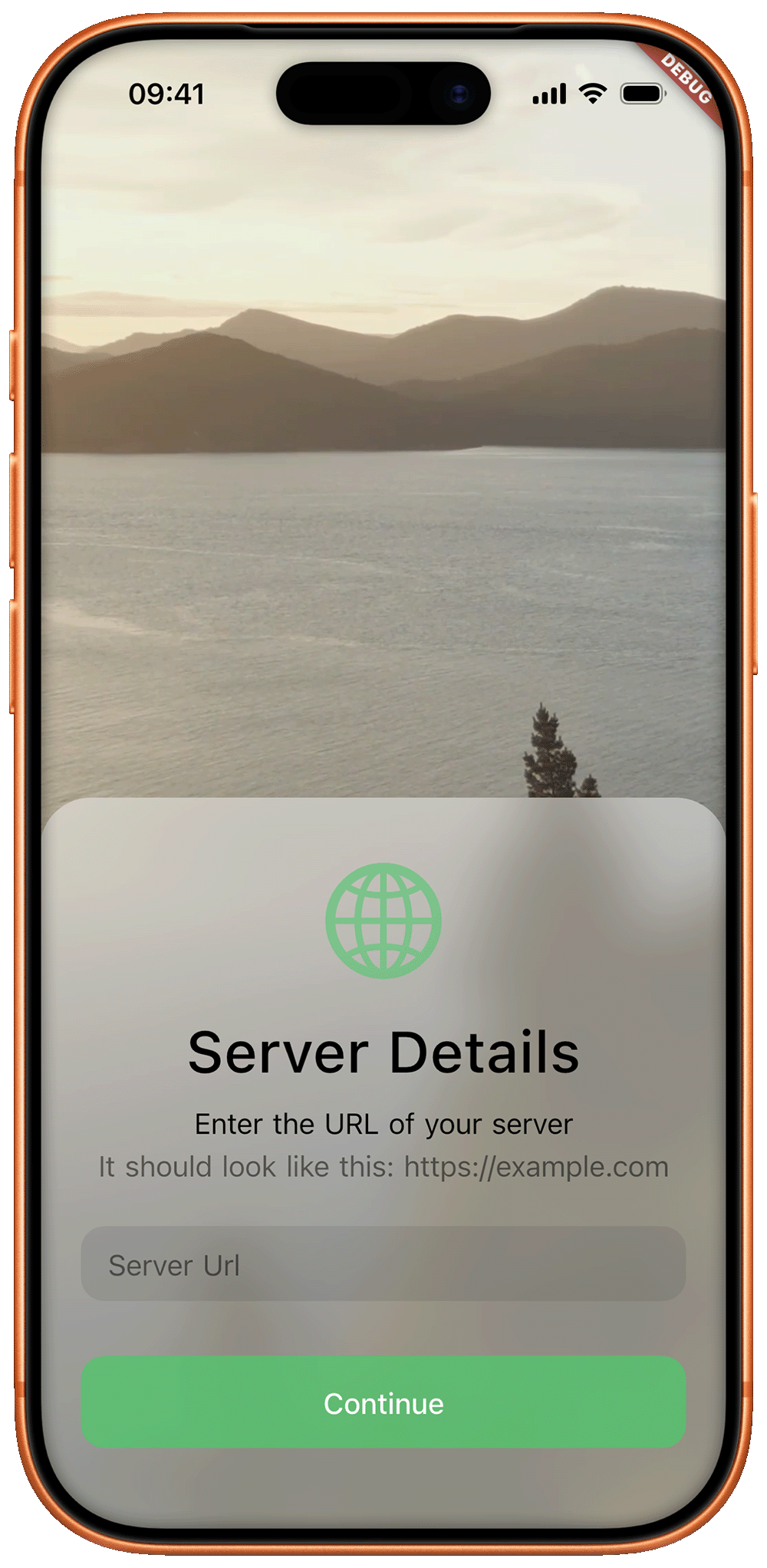
Server URL
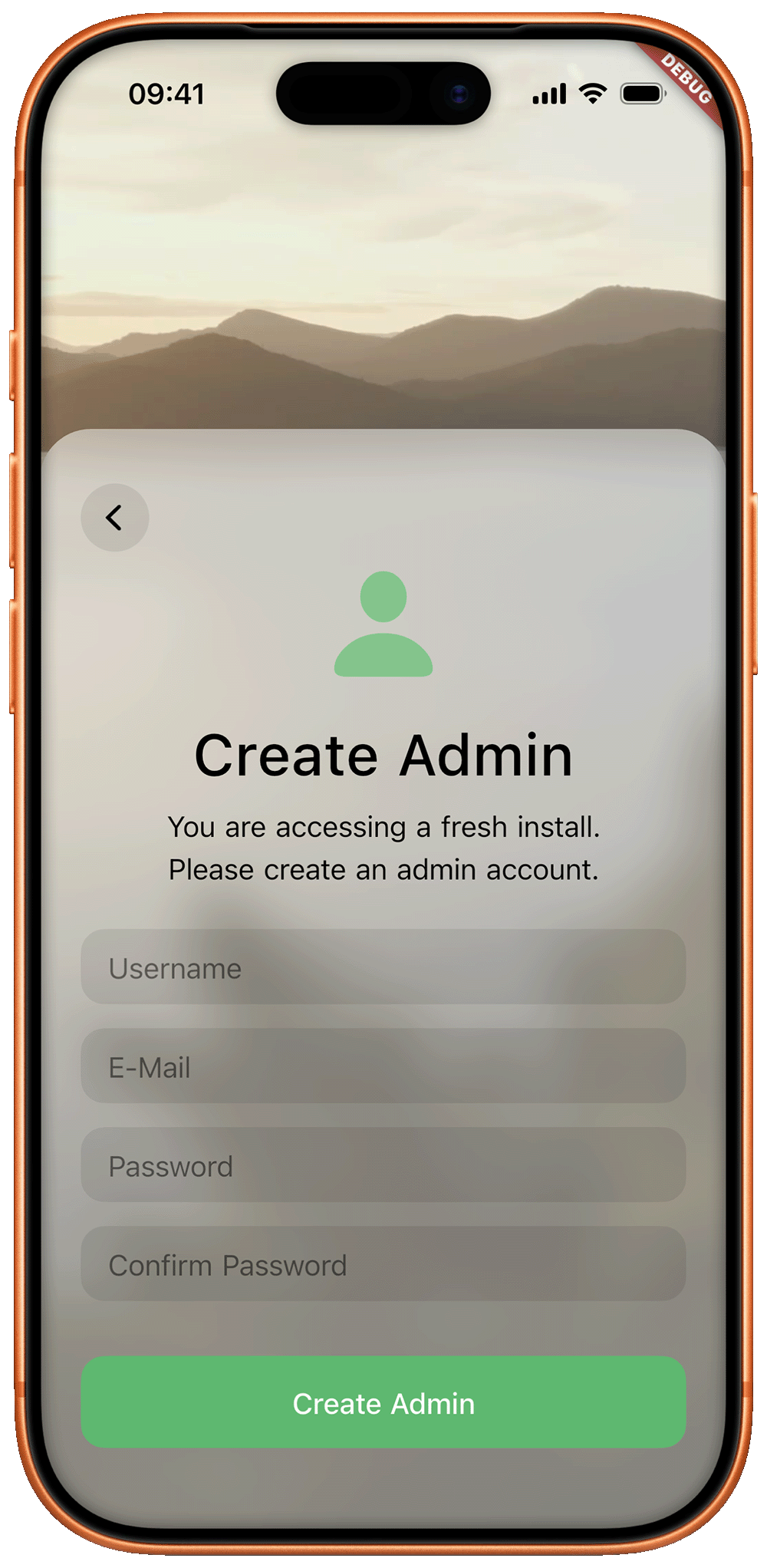
Create Admin